AI product photography prompts
Start from a real product photo, describe the scene, then name what must not change in a closing line. The controls behind that lock come from Google’s, OpenAI’s and Ideogram’s documentation, read 2 October 2026. The templates are ours.
| Shot | Template slots | Control that protects the product |
|---|---|---|
| White-background packshot | Product, white sweep, soft overhead light, label-height angle | Edit from the product photo; change only the background |
| Lifestyle scene | Product, setting, time of day, three-quarter angle | Attach several angles as references |
| Flat lay | Every item, surface, even top light, top-down | One reference photo per item, inside the model’s limit |
| On-model or in-hand | Product, hand or model, pose, crop | Product references; the person described, never cloned |
| Seasonal and campaign | Product, seasonal props, colour mood, banner ratio | Real label composited in an editor; Ideogram text layers for text Ideogram generated |
Scroll sideways for all 3 columns
How often the product changes, and what the vendors’ docs state
Product alteration is a recurring complaint in public reviews of product-photo tools, which we counted per tool on 28 September 2026:
- ChatGPT: edits change parts of the image that should stay the same (7 of 34 sources: Trustpilot).
- Pixelcut: generative edits change the product, with jewellery misplaced and colours altered (9 of 68 sources: App Store, Trustpilot).
- Photoroom: generative features alter the product, labels distorted among them (6 of 76 sources: Trustpilot, App Store).
- Pebblely: prompts and reference images ignored and the product altered (3 of 16 sources: Trustpilot, Neurodigital).
- Flair: logos and patterns come out wrong (2 of 24 sources: Trustpilot, Shotkit).
Each vendor’s documents state a limit of their own. Ideogram’s text layers page says of generated designs: “The text on your poster, book cover, or social graphic is baked in. Fixing a typo means regenerating.”
OpenAI’s image generation guide says of edit masks: “Masking with GPT Image is entirely prompt-based. The model uses the mask as guidance, but may not follow its exact shape with complete precision.”
Google’s API docs cap references per model: Nano Banana 2 takes “Up to 10 images of objects with high-fidelity to include in the final image”. Reference photos and OpenAI’s fidelity setting apply when you start from your own photo, so start there.
One prompt structure for any tool
Seven slots cover a product shot in any tool: subject, surface, light, lens, angle, finish and a constraint line. The templates below join lens and angle on one line and split the constraint into what may change and what must not.
Google publishes its own version for Nano Banana, a sentence template that opens “A high-resolution, studio-lit product photograph of a [product description] on a [background surface/description]” (Developers Blog, 28 August 2025). The filled-in Nano Banana versions, with per-image costs, are on how to use Nano Banana for product photography.
AI product photography prompts by shot
Each template is ours, in brackets where you fill it. Paste it after attaching the product photo. The last two lines differ by shot: they say what the tool may change and what it must keep.
White-background packshot
Subject: the product in the attached photo
Surface: seamless white sweep, soft contact shadow
Light: large overhead softbox, low contrast
Lens and angle: [85mm], straight on at label height
Finish: catalogue, true-to-life colour
Change only: the background and the shadow
Keep unchanged: label text, logo position, cap and body colour
Attach the front photo and a label close-up.
Lifestyle scene
Subject: the product in the attached photos
Surface: [oak kitchen counter beside a cutting board]
Light: [morning window light from the left]
Lens and angle: [50mm], three-quarter view at eye level
Finish: natural, slight depth of field behind the product
Change only: the setting and props around the product
Keep unchanged: product shape, proportions, label and printed colours
Attach two or three angles: Google’s docs count each as an object reference “with high-fidelity”.
Flat lay
Subject: each item in the attached photos, one of each
Surface: [matte stone slab]
Light: single diffused overhead source, short even shadows
Lens and angle: top-down, all items fully in frame
Finish: editorial, generous spacing between items
Change only: the arrangement and the surface
Keep unchanged: item count, each item's packaging and text
Attach one photo per item and stay inside the model’s object limit (10 on Nano Banana 2, 6 on Pro, per Google’s docs).
On-model or in-hand
Subject: the product in the attached photos, held in [a right hand]
Person: [adult, short nails, no rings], face out of frame
Light: [soft daylight, outdoor shade]
Lens and angle: [35mm], close crop on the hand and product
Finish: phone-camera look, no retouching
Change only: the hand, the background and the light
Keep unchanged: the product's label facing camera and its scale in the hand
Describe a generic person. Creator-style ads and real likenesses have rules of their own, set out on AI UGC prompts.
Seasonal and campaign
Subject: the product in the attached photos
Surface: [frosted wooden table], [two pine sprigs]
Light: [cool key light with a warm rim]
Lens and angle: [70mm], slightly elevated front view
Finish: banner, empty space on the [right] third for copy
Change only: props, colour mood and the empty space
Keep unchanged: the product and every word printed on it
Leave headline space empty and add the copy in an editor, where the words stay exact.
Keeping the label and logo right
Reference limits
Google’s Gemini API docs list “Up to 14 images of objects with high-fidelity” on Nano Banana 2 Lite, 10 on Nano Banana 2 and 6 on Nano Banana Pro. Front, back, side and label close-up make four references, inside every model’s limit.
Input fidelity
OpenAI’s guide says “The input_fidelity parameter controls how strongly a model preserves details from input images during edits and reference-image workflows.” For gpt-image-2 you “omit this parameter”, because “the model processes every image input at high fidelity automatically”. OpenAI positions its GPT Image 2.5 Sunburst model “for workflows where editing precision matters most”.
Text layers
Ideogram says that after “Layerize Text”, “every line of text in your design becomes a separate, selectable layer” and “The visual design stays exactly as generated.” The feature is “available on all plans, including the free tier” and through the API.

None of these documents promises an exact label, so the last step is a manual check. Open the output at 100 per cent and compare the label to the product photo. Paste the real label artwork over any wrong letters in your editor.
An AI product photography workflow
- Photograph the product plainly. Use a phone in daylight against a plain background, and shoot both sides plus a label close-up.
- Remove the background. Photoroom and Pixelcut both list background removal.
- Generate or edit the scene. Attach the cut-out and a shot template in Nano Banana, ChatGPT or Flair.
- Check the label at 100 per cent. Compare every word and the logo against step 1.
- Fix the text. Composite the real label artwork in an editor. For text generated in Ideogram, its text layers edit the words.
- Export at the placement’s ratio.

The best AI product photography tools list compares the tools for each step, and product photo to video takes the finished still into motion.
Free prompts, paid rights
A free prompt can still produce an image you cannot run as an ad. Photoroom’s terms grant Free accounts a licence “for your own personal, non commercial purposes” (clause 2.1.b, terms dated 29 July 2026).
For images made after 28 February 2025, Flair’s terms say “[i]mages created under the Free, Pro, and Pro+ plans will show up in Flair Gallery and other Flair users may also use them in personal and commercial settings” (Privacy, 19 July 2024).
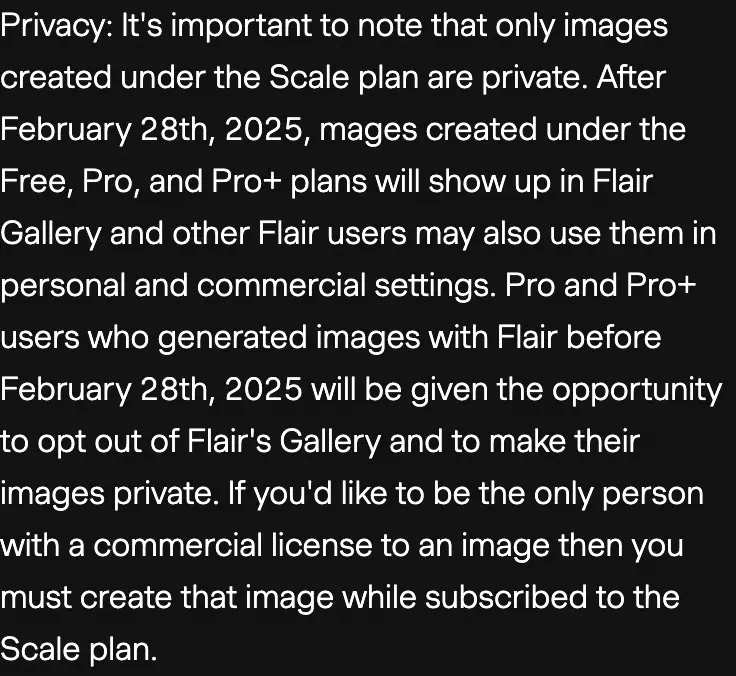
Check the plan before the prompt. Every tool’s rights by plan and use sit in the rights matrix.
Questions sellers ask about AI product photo prompts
What is a good prompt for product photography?
Name the surface, light, lens, angle and finish, then list what must stay unchanged. Google’s template covers surface, lighting, angle and key detail.
Can AI keep my product’s label exact?
No vendor we read promises it. Composite the real label for exact print; Ideogram’s text layers edit only Ideogram-generated words.
Where can I see AI product photography examples?
The videos on this page show a phone photo turned into a scene and Ideogram’s text layers. Google’s prompting blog shows its template’s coffee-mug output.
Sources
- Google AI for Developers: Image generation with Gemini, Up to 10 images of objects with high fidelity on Nano Banana 2, 6 on Nano Banana Pro, 14 on Nano Banana 2 Lite. Last updated 23 September 2026. Checked
- Google Developers Blog: How to prompt Gemini 2.5 Flash Image Generation for the best results, Published 28 August 2025; section 4, the product photography template and its example output. Checked
- OpenAI API documentation: Image generation, The input_fidelity parameter, fixed at high fidelity on gpt-image-2; masking described as prompt-based; Sunburst for workflows where editing precision matters most. Checked
- Ideogram: Editable Text Layers, Layerize Text turns each line of generated text into an editable layer; available on all plans, including the free tier, and through the API. Checked
- Photoroom: Photoroom Terms and Conditions, Clause 2.1.b, the Free account licence for personal, non commercial purposes. Terms dated 29 July 2026. Checked
- Flair.ai: Flair Terms of Service, Privacy, images made on Free, Pro and Pro+ show up in the Flair Gallery for other users. Terms dated 19 July 2024. Checked
What changed on this page
- Written from Google’s, OpenAI’s and Ideogram’s documentation, read 2 October 2026, the Photoroom and Flair terms, and 218 public user reviews of five tools.

Alexandre S.
Alexandre S. is a creative strategist and copywriter with ten years in content and SEO. He writes and edits short-form ads, works in English and French, and reads the pricing and terms pages behind every tool on this site before anything is written about it.
Related pages
- Profile Photoroom for ads
Photoroom free and trial use is non-commercial; no clause says who owns AI images. Pro: $0.013 an export if every export is used. Prices checked 2 October 2026.
- Profile Flair AI for product shots
Flair’s terms let other users reuse Free, Pro and Pro+ product images commercially and keep only Scale images private. Plans checked 2 October 2026.
- Category AI static ad generators
Ad tools resell image models at up to 27 times the maker’s price, if every credit is used. 18 static ad tools on price and ad rights, checked 25 September 2026.


